
Signing in and access
Signing in
Open the app and sign in with the email address and password issued by your organisation. The app is for tenant users; an account that is not a tenant user cannot sign in.
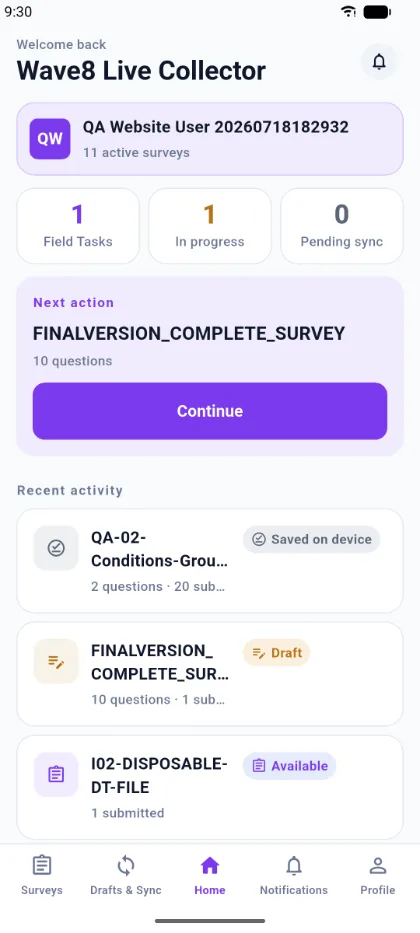
After you sign in, the home screen greets you by name and shows your organisation, how many surveys are currently active for you, and three counters:
- Field Tasks — assignments waiting for you.
- In progress — responses you have started but not finished.
- Pending sync — responses waiting to upload.
What decides which surveys you see
A survey appears in the app only when all of the following are true:
- It is active and visible to authenticated users.
- Its channel allows mobile. A survey restricted to the web player will not appear.
- Your access matches the survey's audience — for surveys limited to assigned users, you need an assignment.
If a survey you expect is missing, it is almost always one of those three.
Consent
Some surveys ask you to accept a participation agreement before the first question. The agreement text is set by the survey author. You can decline, which returns you to the survey without starting a response.
Language
The app runs in English or Arabic, including right-to-left layout. Switch language from Profile → Language. Survey content itself is shown exactly as the author wrote it.
Signing out and local data
Signing out leaves your encrypted local data in place so you can return to it. To remove it deliberately, use Delete local data in the account screen. That erases the local copies for the account on that device.