
Starting, saving and resuming a response
Starting
Start survey on the details screen creates a new response. If the survey requires consent, you accept the participation agreement first.
Progress
A progress bar at the top shows how many answers are complete — for example 3/6 answered, 50%. The count reflects the questions that are actually active for you: if a survey branches, questions on a branch you did not take are not counted.
Saving and resuming
Your answers are written to the device as you go, not only when you finish. You can leave a response and come back to it.
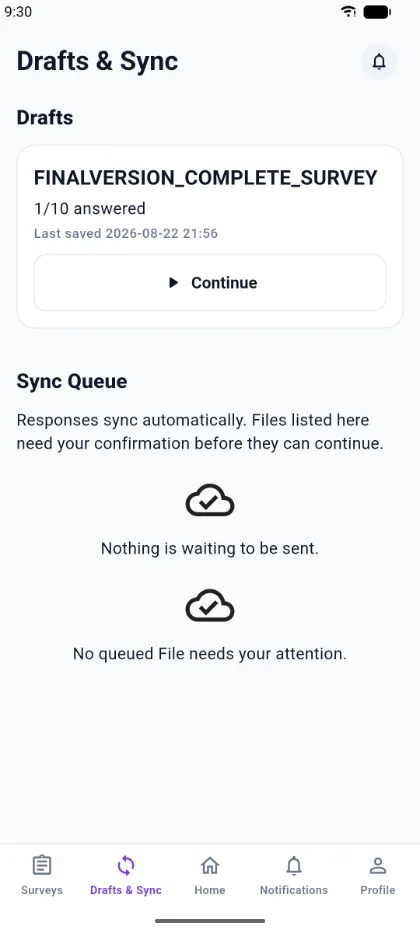
Open Drafts & Sync to see every draft, with how far through it is and when it was last saved. Continue returns you to the response.
Finishing
At the end of the survey you reach Review answers. See Validation and review for what happens there.
Depending on how the survey was configured, the review screen offers either:
- Submit — for surveys that complete automatically once required answers are present, or
- Save draft only — for surveys on a review workflow, where the response is saved as not completed and handled by a reviewer.
The details screen tells you which applies, under Completion.
Responses you have already submitted
View my responses on the survey details screen lists your submitted responses for that survey. If the survey allows editing after submission, you can open one and change it.