
Survey details
Tap a survey to see what you are about to work on before you start.
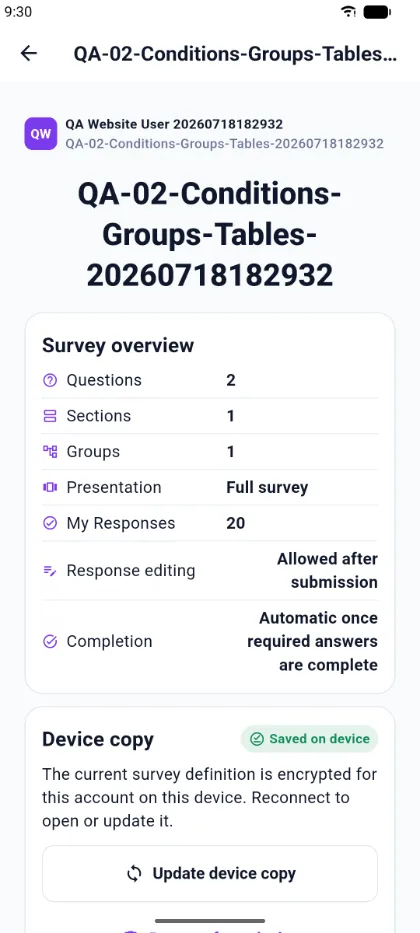
Survey overview
The overview summarises the instrument:
- Questions, Sections, and Groups — the shape of the survey.
- Presentation — how the survey will be shown to you. See the table below.
- My Responses — how many responses you have already submitted.
- Response editing — whether you may change a response after submitting it.
- Completion — how the survey finishes. Automatic once required answers are complete means you can submit from the app. A survey on a review workflow is saved for review instead.
- Requires — anything the survey needs, such as a file attachment.
Presentation modes
| Mode | Behaviour |
|---|---|
| Question by question | One question per screen, with Previous and Next |
| Section by section | One section per screen |
| Group by group | One group per screen |
| Full survey | The whole survey on a single scrolling screen |
The device copy
A survey you have opened is stored on the device so you can work without a network. The details screen shows Saved on device and explains that the definition is encrypted for your account on that device.
Two actions are available:
- Update device copy — fetch the latest published version. Do this when a survey has been republished.
- Remove from device — delete the local copy. You can download it again later.
Starting
Start survey begins a new response. If you already have a draft, the button reads Continue and takes you back to where you stopped.