
Conditional logic
Conditional logic adapts a survey to the respondent's answers. It can keep irrelevant questions out of the active path, make follow-up information required, disable content, or control repeated content.
Conditions are authored in the Survey Builder as part of the same survey definition as sections, groups, questions, and dynamic tables.
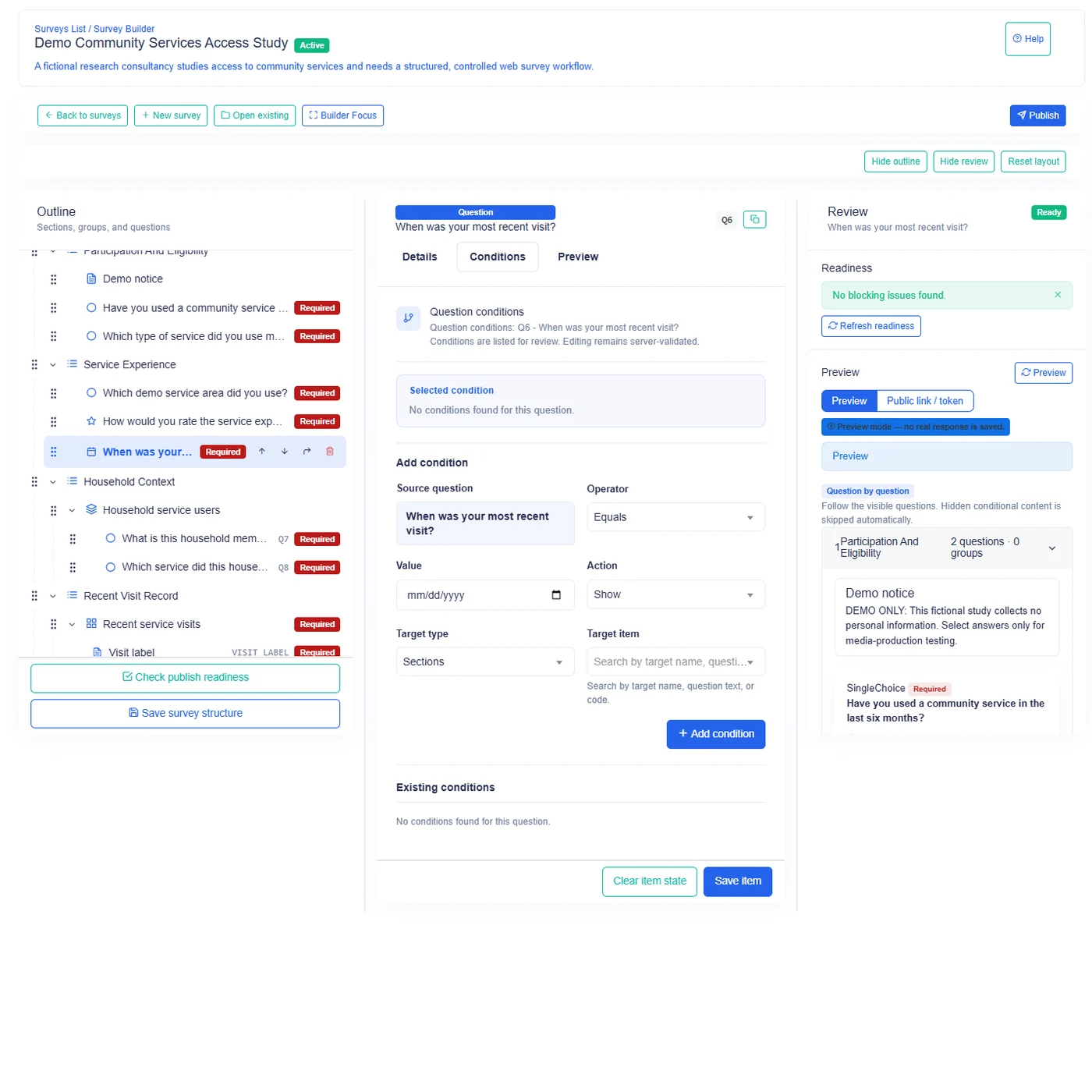
The five-part rule
Every condition follows this sequence:
Source question → Operator → Value → Action → Target
Example:
If Did the household receive assistance? Equals Yes, Show the Assistance details group.
| Part | Meaning in the example |
|---|---|
| Source question | Did the household receive assistance? |
| Operator | Equals |
| Value | Yes |
| Action | Show |
| Target | Assistance details group |
The source supplies the answer being evaluated. The operator and value define the match. The action states what happens to the target.
Source question
The source must be a question in the same survey. Choose a question whose answer is stable and understandable to the respondent.
Examples of useful sources include:
- a Yes/No eligibility question;
- a Single Choice category;
- an Integer count;
- a Date or numeric threshold;
- a Text answer when a text comparison is appropriate.
Table columns are not condition sources. For repetition based on an answer, the source must be an Integer question.
Comparison operators
Survanta has ten comparison and matching operators.
| Operator | Meaning | Example |
|---|---|---|
| Equals | Answer is the same as the condition value | Status equals Active |
| Not equals | Answer differs from the condition value | Status is not Closed |
| Greater than | Answer is above the value | Age is greater than 17 |
| Less than | Answer is below the value | Score is less than 50 |
| Greater than or equal | Answer is at or above the value | Household size is at least 5 |
| Less than or equal | Answer is at or below the value | Visits are at most 2 |
| Contains | Text contains the value | Comment contains referral |
| Starts with | Text begins with the value | Code starts with RUR |
| Ends with | Text ends with the value | Reference ends with 2026 |
| In | Answer matches one of the listed values | Region is in North, East |
Operator suitability depends on the source type. Use text matching for Text, numeric comparisons for Integer, Decimal, and Rating, date comparisons for Date, and Equals, Not equals, or In for Yes/No and choice questions. For lookup sources, use Equals, Not equals, or In. Duration and File should not currently be used as condition sources. Preview every rule with both matching and non-matching answers before collection.
Actions
Survanta has five condition actions.
Show
Show makes the target visible when the condition matches. If a target has Show rules and none match, the target remains hidden.
Use Show for follow-up content that should begin outside the respondent's active path.
Hide
Hide removes the target from the active path when the condition matches.
Use Hide when content is normally visible but becomes irrelevant for a particular answer.
Require
Require makes an applicable target mandatory when the condition matches. For authoring, Require is supported for questions and dynamic tables.
If the target becomes hidden or disabled, it is not treated as an active required item.
Repetition
Repetition controls cardinality. It is paired with one of three cardinality operators:
- Fixed Count;
- Count From Answer;
- Dynamic Table Row Count Control.
Fixed Count and Count From Answer can repeat a question, a group, or a dynamic table block. Row Count Control changes rows inside one dynamic table.
Disable
Disable leaves the target in the survey layout but prevents interaction when the condition matches. Disabled content is not an active required item.
Use Disable when seeing the content still gives useful context but the respondent should not change it.
Targets
A comparison condition can address these target types:
| Target | Result of a visibility action |
|---|---|
| Question | Affects one answer field |
| Group | Affects all questions in the group |
| Section | Affects the section and its contained content |
| Dynamic table | Affects the whole table block |
Repetition has a narrower target set: a question, a group, or a dynamic table block. It does not repeat a section.
Hidden content and answers
When a condition hides content:
- the respondent does not interact with it;
- its required state does not block the active path;
- its answer is not treated as an active answered value;
- hidden or disabled values are excluded from the active submission.
If an answer change makes a previously visible branch irrelevant, the interface updates the active path. Authors should test both directions of every branch, including a branch that already contains entered values.
Show and Hide are different design choices
Use Show when the target should be hidden until the condition is satisfied.
Use Hide when the target should normally be visible and disappear only when the condition is satisfied.
Example:
- Show "Pregnancy details" when sex and age criteria make it applicable.
- Hide "Employment follow-up" when status equals Not working.
Choose one mental model for a target and keep it consistent. Several visibility rules on the same target are harder to review than one clear eligibility path.
Worked example
Suppose a service survey asks:
Source: "Was a referral made?"
The author adds this rule:
| Field | Value |
|---|---|
| Operator | Equals |
| Comparison value | Yes |
| Action | Show |
| Target | Referral details group |
When the answer is Yes, the group appears. When the answer is No or blank, the group stays outside the active path. Any required questions inside the hidden group do not block submission.
Authoring checklist
- Name the source and target clearly.
- Confirm both belong to the intended survey.
- Choose an operator compatible with the source type.
- Enter a comparison value in the same meaning and format as the answer.
- Choose the smallest target that represents the branch.
- Preview both matching and non-matching paths.
- Change the source after filling the target and observe the result.
- Confirm required checks follow visibility and enabled state.
- Test conditions in each intended collection channel.
Conditions should make the questionnaire easier to follow. If reviewers cannot explain why a target appears, simplify the rule or split the survey flow into clearer stages.